
Managing Posts (Post Manager)
The Post Manager provides a data table interface to view, sort, filter, edit, and delete all your blog posts in one place.
To manage all your blog posts in one place, navigate to Posts manager from the left sidebar. The Post Manager provides a "data table interface" where you can easily:
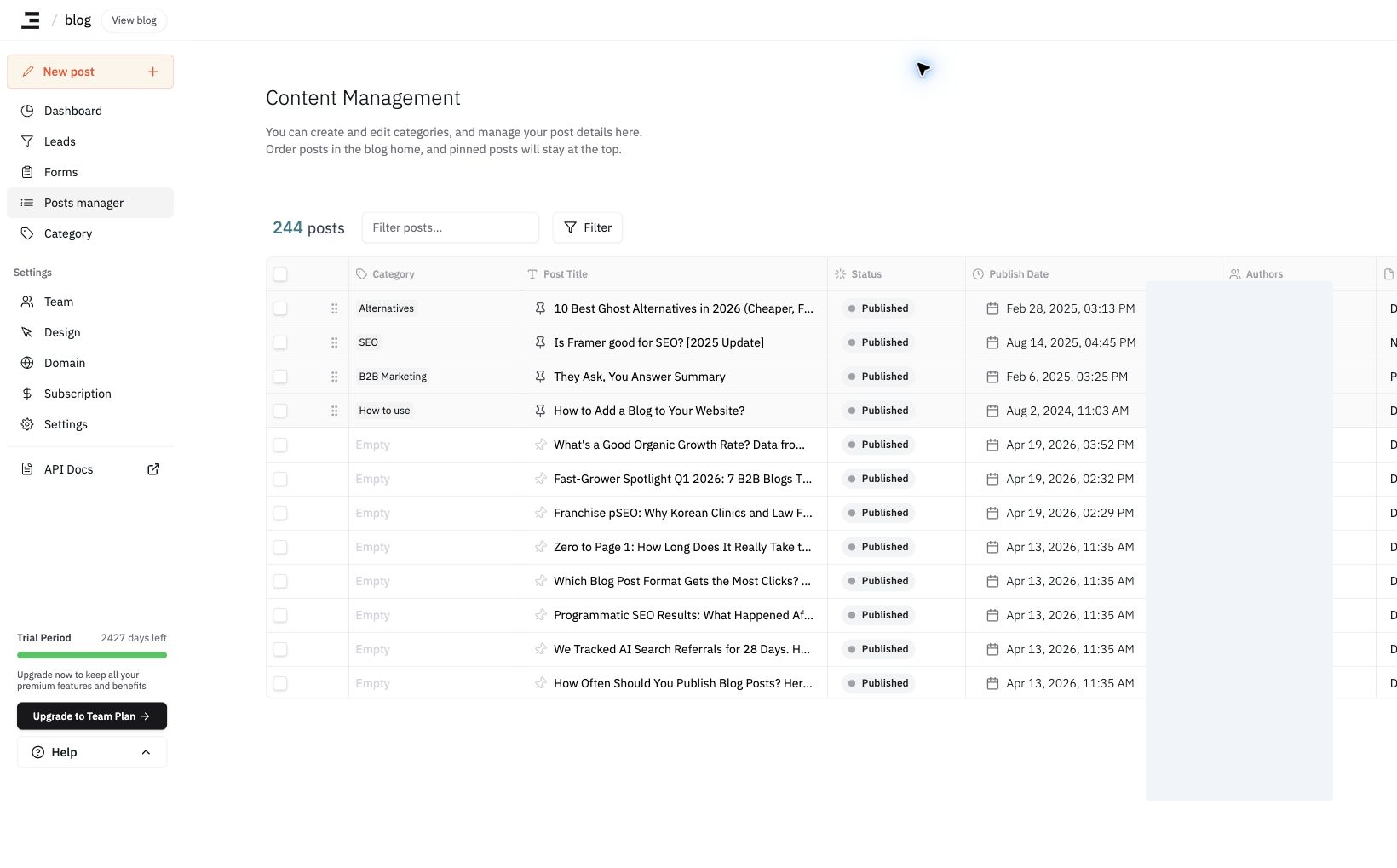
- View all published and draft posts at a glance
- Sort and filter by title, publish date, author, or status
- Quickly access, edit, or delete individual posts
This feature enables rapid content organization—particularly beneficial for teams managing numerous contributors or substantial publishing volumes.
Use the Download CSV button in the top-right to export your post list as a CSV file. Customize Columns changes the columns of the on-screen table, not the fields included in the CSV.
Pinning a Post to the Top of Your Blog Home
In the Posts manager list, click the pin icon to the left of a post title to pin that post. Pinned posts appear above regular posts on your blog home.
- There's no limit on how many posts you can pin.
- When several posts are pinned, grab the drag handle in the leftmost column of a row to move it up or down and change the display order. On mobile, use the ↑ ↓ buttons at the bottom of a pinned post's card instead.
- Click the pin icon again to unpin.
Don't see the drag handle? It only appears on pinned posts, and only when no search term or filter is applied to the list. Clear all search and filters, then try again. Pinned posts must also always stay above unpinned ones, so a reorder that moves a pinned post below them won't be saved.
Duplicating a Post
You can duplicate an existing post to use it as a starting point for a new one.
- Open the post you want to duplicate.
- Click the
···(three-dot) button in the top-right corner. - Select Duplicate post.
The duplicate is created as a draft. Edit the title and content, then publish when ready.
Deleting Posts (Deletion Can't Be Undone)
Deleting a post from the Post Manager removes it permanently. There is no trash or undo, so neither published posts nor drafts can be restored from the dashboard once deleted.
Before deleting several posts at once, make sure the selection is what you think it is.
- The select-all checkbox in the header selects every post in the currently searched and filtered list, not just the rows you can see on screen. If you select all drafts and then clear or widen the filter and click it again, your selection is replaced by every post in the new list — published posts included.
- Your selection stays as it is when you change the search term or filter. Rows you ticked individually remain selected even after they drop out of the filtered list, so posts that are no longer visible on screen can be deleted too.
- Before you click delete, check that the selected count on the left of the selection bar and the number in the confirmation dialog (
Delete N posts?) match how many posts you intend to remove. Use theXon the right of the selection bar to clear the selection and start over.
Back up your post bodies first.
Download CSVdoes not include post content. To archive what you wrote, follow the backup steps in the frequently asked questions and pullcontent_htmlthrough the API.
If you deleted something by mistake, tell us over chat before you rewrite or republish the post. Deleted posts can't be rolled back from the dashboard, but we'll check whether recovery is possible in your case.
Last updated 2026-08-20